Color Schemer

Seven color harmonies from one starting color, applied to the whole document in a click, and savable straight into a brand kit.
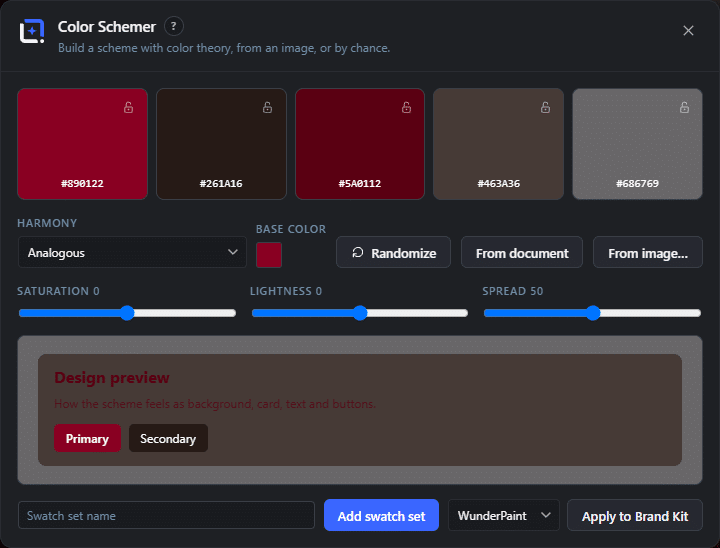
The Color Schemer dialog in WunderPaint
Design Tools

Pick one color, get a palette that cannot clash, and recolor the whole design with it.

Choosing colors is the part of design where people either freeze or reach for a random generator and hope. Both are avoidable, because color harmony is geometry: pick a hue, and the colors that work with it sit at predictable angles around the wheel.

Color Schemer does that geometry for you and then does the boring part too. Give it a starting color, or let it read the colors already in your document or out of an image, and it proposes palettes built on the seven classic harmonies: analogous, complementary, split complementary, triadic, tetradic, monochromatic, and shades and tints.

The bit that saves real time is what happens next. Apply a palette and the whole document is recolored, not just a swatch panel updated. Every shape, every text layer, every fill follows the new scheme at once, so trying five palettes on a finished design costs five clicks rather than an afternoon.

And when one of them is right, push it straight into a brand kit. From then on those colors sit in every color picker on the site, in every template, in every generated image, so the decision is made once and stays made.

Play Video

Where to find it

Tools, then Color Schemer

What it replaces

Online palette generators and a lot of manual swatch fiddling

What you get

  • Seven color harmony models
  • Palette extraction from the document or from an image
  • One-click recoloring of the entire design
  • Saving as a swatch set for later
  • Writing colors straight into a brand kit
  • Works offline, in the browser, on any hosting

Requirements

Part of the free plugin. Nothing to configure, no account, no key.

Frequently asked questions

No. Pick a color you like and choose a harmony by how the result looks. The theory is doing the work in the background, which is the point. If you want the reasoning, the blog has a piece on building a palette without learning color theory.
Applying a palette is an ordinary edit, so undo takes it back. The safest way to compare options is to apply one, look, undo, apply the next.
Yes. Colors that come from a brand kit stay where you put them, and any layer you do not want touched can be excluded by locking it before you apply.

Features

Seven harmonies, one starting point

Analogous, complementary, split complementary, triadic, tetradic, monochromatic, shades and tints. Pick the relationship, not the individual colors.

Features

Reads the colors you already have

Pull the starting palette out of the open document or out of any image, so a new design can inherit the colors of a photograph or a logo.

Features

Recolors the whole document

Apply a palette and every layer follows, so comparing options is a click each instead of a manual pass over the design.

Features

Writes back to the brand kit

Save the winning palette into a brand kit and it appears in every color picker, every template and every generated image afterwards.

Experience Color Schemer in WunderPaint

Pick one color, get a palette that cannot clash, and recolor the whole design with it.

Brush & Paint Styles

Paint with six styles that mix pigment instead of blending it, pick from thirty-seven tips shown as real strokes, draw a tip of your own out of shapes, and let the color travel along the stroke.

Collage & Photo Grid

Arrange media library photos as a grid, mosaic, polaroid, filmstrip or contact sheet, tune gaps, corners and frames on a live preview, and insert it all as an editable layer group.

360° Panorama

Describe a place and the tool builds the full sphere around you, or let it rebuild a photo you already have as the whole scene around the camera. What comes out is somewhere visitors can look around, hotspots and all, in an embed that carries its own viewer.

AI Studio

Generate, edit, retouch and clean up images from a prompt or a single click, all in one panel. Many tools run locally with no key; prompt generation uses your own Gemini or OpenAI.

Asset Generator

Gradients, text treatments, shapes and illustrations generated from a prompt, in your brand colors, arriving as editable layers.

Stock Images

Search Pexels, Pixabay and Unsplash without leaving the editor, and insert what you find as a layer rather than a download.

Asset Library

Ready-made designs across social, marketing and seasonal categories, opening as layered documents in a new tab so your current work stays untouched.

Brand Kits

Colors, typefaces, a logo, a watermark and a company profile in one place, feeding every picker, template and generator on the site.

Media Library Manager

Folders and tags that persist outside the editor, semantic search that finds images by what they show, color and orientation filters, smart folders, and a full set of housekeeping tools.

Check Contrast

Audits the text layers in your document, reports the contrast ratio for each and tells you which ones are hard to read.