Screenshot Beautifier

Padding, rounded corners, a real shadow, optional browser or phone chrome and a generated backdrop, all landing as editable layers.
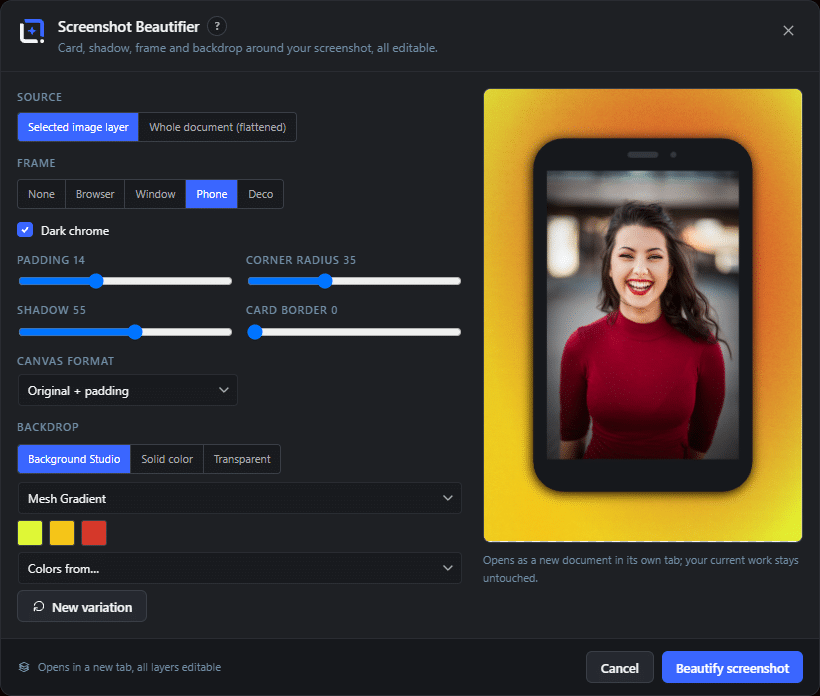
The Screenshot Beautifier dialog in WunderPaint
Design Tools

Turn a raw screen capture into something that looks like it belongs on the page.

A raw screenshot has hard edges that run straight into the page background and no depth at all, so it reads as a foreign object rather than an illustration. Four small things fix it: padding, a rounded corner, a soft shadow, and a backdrop of its own.

That is exactly what this does, and it does it to the layer or the whole document you are already working on rather than to a file you have to upload somewhere. Frames are optional: none, browser, window, phone or a decorative one, with a dark chrome switch for dark interfaces.

The backdrop is the part people underestimate. It can be a solid color, transparent, or a generated mesh gradient built from the colors in the screenshot itself, which is why the results look considered rather than pasted onto a random purple.

Everything opens in a new document with the layers intact, so annotating afterwards is normal editing: draw an arrow, add a callout, blur the customer name. Nothing is baked.

Play Video

Where to find it

Tools, then Screenshot Beautifier

What it replaces

The screenshot prettifier web apps everybody pastes their work into

What you get

  • Source: the selected layer or the whole document
  • Frames: none, browser, window, phone, decorative
  • Padding, corner radius, shadow and border controls
  • Backdrop: generated gradient, solid color or transparent
  • New variation button for quick alternatives
  • Opens as an editable document, nothing flattened

Requirements

Part of the free plugin. Your screenshots never leave your server.

Frequently asked questions

No. The whole thing runs in your browser, on your own site. That matters more than it sounds, because screenshots leak customer names, invoice numbers and tokens more often than anyone expects.
Yes, and you should. Set the padding, radius, shadow and backdrop once, then use the same values for every capture in the document. Consistency is what makes a set of screenshots look professional.
Yes. The result is a normal layered document, so you can add a shape or a blur over anything that should not be published.

Features

The four things that matter

Padding, corner radius, shadow strength and a card border, each on its own slider, so the treatment can be tuned once and repeated.

Features

Frames when they help

Browser, window, phone or decorative chrome, with a dark variant, so a mobile screenshot says it is a mobile screenshot without a caption.

Features

A backdrop from your own colors

Generate a mesh gradient behind the capture, sampled from the screenshot or from your brand kit, instead of picking a color and hoping.

Features

Editable afterwards

The result is a layered document, so annotations, redaction and callouts are ordinary edits rather than a second round trip.

Experience Screenshot Beautifier in WunderPaint

Turn a raw screen capture into something that looks like it belongs on the page.

Brush & Paint Styles

Paint with six styles that mix pigment instead of blending it, pick from thirty-seven tips shown as real strokes, draw a tip of your own out of shapes, and let the color travel along the stroke.

Collage & Photo Grid

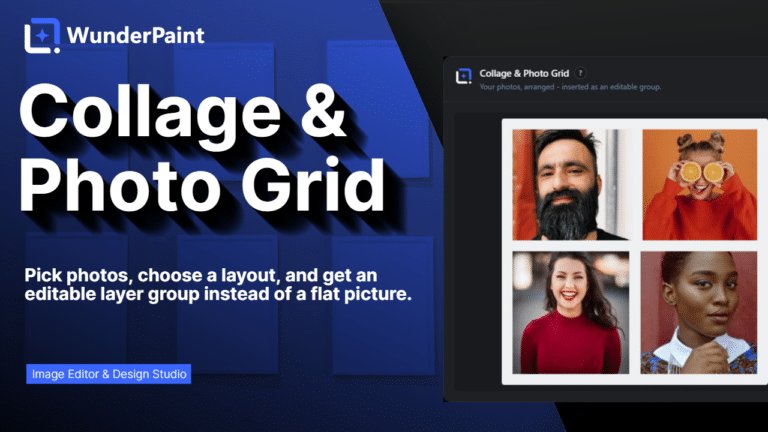
Arrange media library photos as a grid, mosaic, polaroid, filmstrip or contact sheet, tune gaps, corners and frames on a live preview, and insert it all as an editable layer group.

360° Panorama

Describe a place and the tool builds the full sphere around you, or let it rebuild a photo you already have as the whole scene around the camera. What comes out is somewhere visitors can look around, hotspots and all, in an embed that carries its own viewer.

AI Studio

Generate, edit, retouch and clean up images from a prompt or a single click, all in one panel. Many tools run locally with no key; prompt generation uses your own Gemini or OpenAI.

Asset Generator

Gradients, text treatments, shapes and illustrations generated from a prompt, in your brand colors, arriving as editable layers.

Stock Images

Search Pexels, Pixabay and Unsplash without leaving the editor, and insert what you find as a layer rather than a download.

Asset Library

Ready-made designs across social, marketing and seasonal categories, opening as layered documents in a new tab so your current work stays untouched.

Brand Kits

Colors, typefaces, a logo, a watermark and a company profile in one place, feeding every picker, template and generator on the site.

Media Library Manager

Folders and tags that persist outside the editor, semantic search that finds images by what they show, color and orientation filters, smart folders, and a full set of housekeeping tools.

Check Contrast

Audits the text layers in your document, reports the contrast ratio for each and tells you which ones are hard to read.

QR Code Generator

Links, text, email, phone, SMS, Wi-Fi access and contact cards, styled with your colors, module shapes and a center logo.

Chart & Table

Turn data into chart or table layers that stay editable, styled with your own typeface and colors rather than a spreadsheet default.

Content Generator

Article, SEO title, meta description, slug, tags, FAQ and sources, plus body images, a featured image and a social crop, all as a draft.

Generate from CSV

Type placeholders into your text layers, pick a spreadsheet whose columns carry the same names, and every row renders the design once.

Image Processor

Quick presets for web, email and lossless output, plus full control over format, quality and maximum size, applied across many images at once.